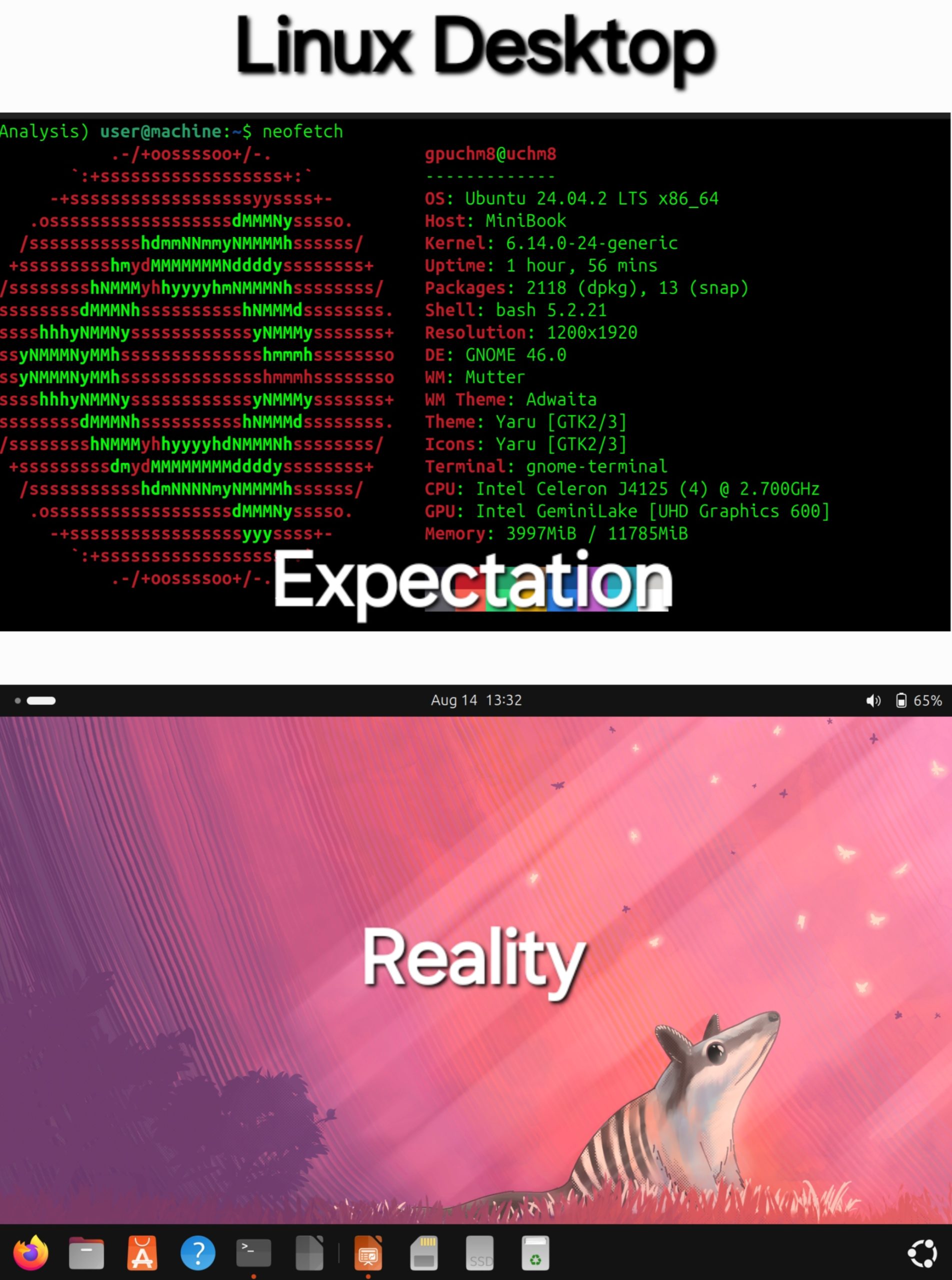
Whenever I open Linux, my classmates often ask me, “Do you need the commandline to operate Linux?” , “Is it difficult to use Linux”, and so on. In this post, I will explain what Linux really look like and how to operate Linux.
The Desktop
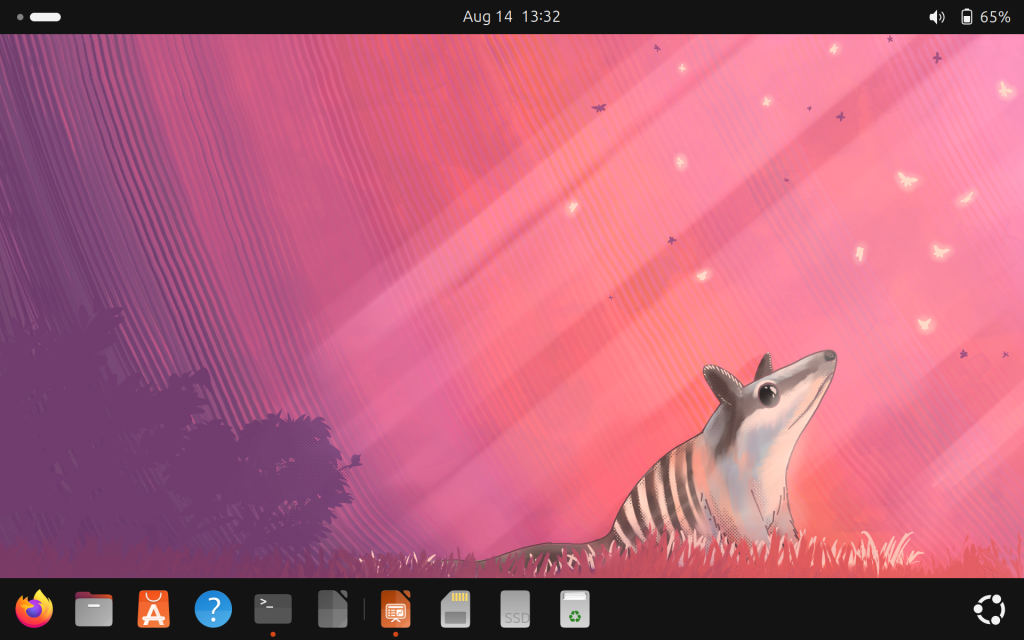
This is my Ubuntu GNOME desktop. Once you logged in to your computer, this what you see, the desktop. Yes, it is automatic; you don’t have to program anything before and you do not have to touch face cryptic text-only prompt. Let’s take a closer look.
Components
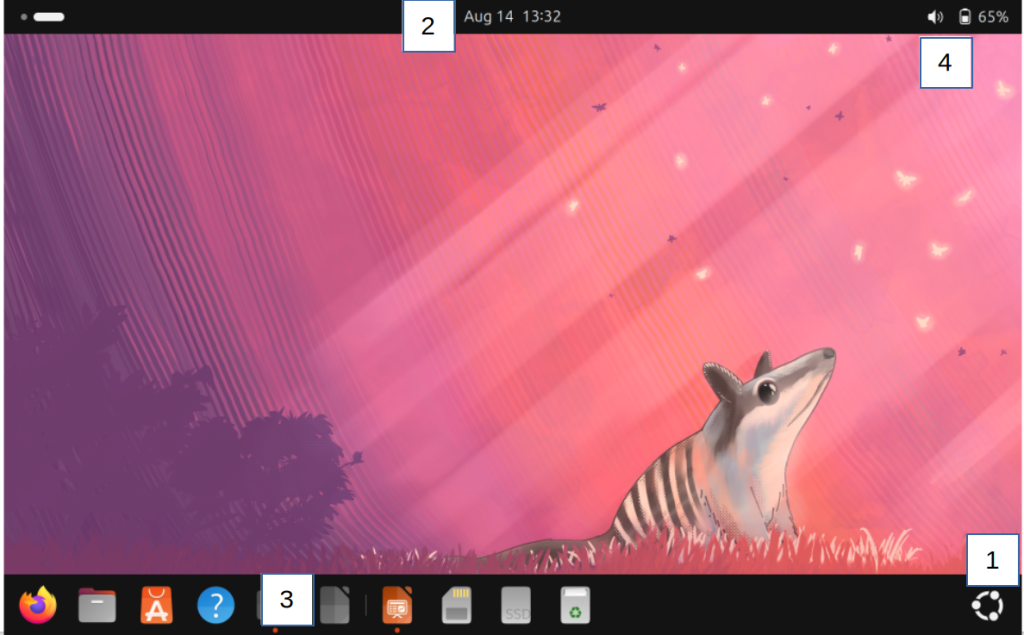
There are four points you can interact with. Here they are :
- Start applications, search files, or switch workplace
- Show current date, time, and calendar to make schedule
- Apps you frequently used and running, similar to task bar.
- Battery info, adjust brightness, sound, connection, etc
Feel free to click them and play around!
If you noticed, my Linux desktop lack shortcut which Windows have. That is my choice and it’s customizable. So if you’d like to have the good old shortcut, you can do it yourself.
Starting Apps
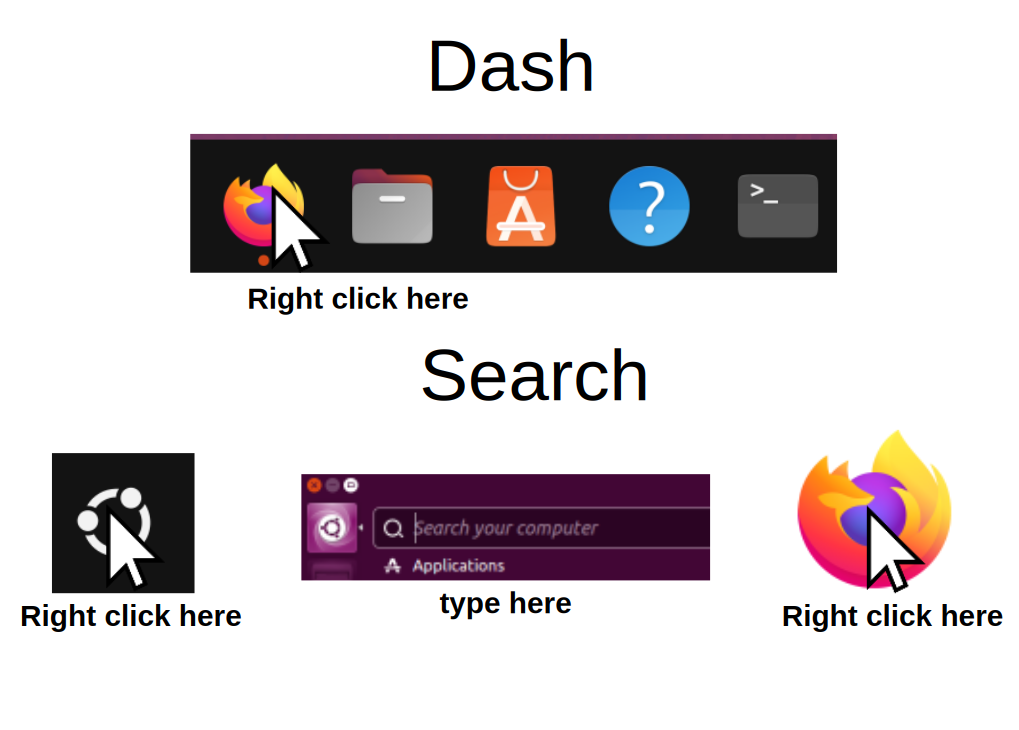
I spend most of my time in desktop to start apps. To start apps, you can do it in two ways:
- Right click any apps you want in the dash.
- Right click on the start button -> search the app you want to start -> and right click.
- Alternatively, press the Windows key in your keyboard.
- You can also tap the icon if you are on touch screen.
- If you want to pin an app to dash, left click -> pin
“So what are some common Linux apps?” I will give you some suggestions.
Firefox

The flagship of Free browser. Firefox can be customized in your own ways with various add ons and themes. It also works on Windows, OS X, and Android. So if you haven’t used Linux, you might be using Firefox already.
LibreOffice
LibreOffice is a Free office suite that is installed by default in Linux. It is also available in Windows and OS X. From high school assignment, to college thesis, and study notes, you do all of them in LibreOffice.
Nautilus
The file explorer of Linux. You can operate it in the same way as Windows or OX X file managers. No need to open the commandline to manage your files.
Snap

Also known as Ubuntu app store. You can find, install, and uninstall software without touching the commandline. This repository contains many categories of Free Software from education, office, development and so on.
Terminal
This is what people think when they imagine Linux. Despite being Linux trademark, the commandline is only a part of desktop app. Unless you are in IT, running old or DIY Linux (eg: Slackware, Gentoo, Arch), or simply like it, you don’t have to touch it.
More Desktops
Linux gives you the freedom to customize anything, including the desktop. You could not only customize the existing desktop software but, to install an entirely different desktop environment. Imagine replacing your your entire desk in the office.
These are some popular Linux desktops :


Turn Off
To turn off Linux, find the quick settings button on the top right corner. Click the power button > shutdown and wait until your laptop is off. Alternatively, you can also choose restart or log out.
What do you think about Linux? Do you like it? If yes, stay tuned for the next article. I will show you how to customize Linux.